
Introduction
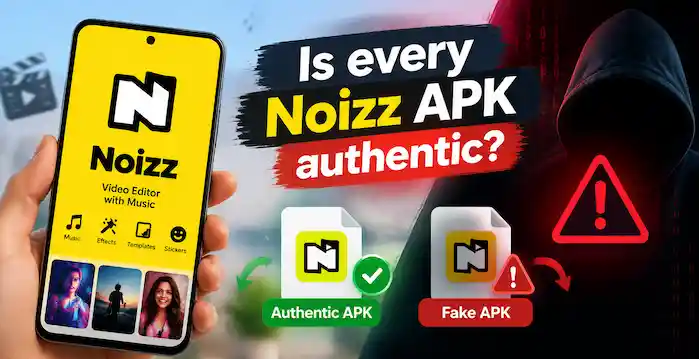
How to Download Noizz APK depends on the Android version, the file type, and whether you can verify the source. The original Noizz app was a video editor for making short clips with photos, music, templates, and effects. Its old Google Play listing is no longer available, so people may find archived files on third-party websites instead. That does not mean every file with the Noizz name is genuine or safe. Before you install one, check its version, package details, and permissions. This guide explains how to prepare your phone, review an APK, install it when you can verify it, and deal with common errors. It also explains when to stop and choose another video editor. Use these checks to protect your phone and personal data.
Before You Download Noizz APK
Check whether the original Noizz editor has a verified Google Play listing. If not, treat third-party downloads as archived files. A page using the Noizz name may not host the original app.
Review the developer, version, package name, file size, and update date. Compare details with reliable records. Avoid pop-ups and extra download buttons. Check your Android version and free storage too.
Step 1: Check the File Type and Source
An APK is the standard Android app package. An XAPK may include extra data or split files and need a compatible installer.
Do not rename an XAPK file to make it look like an APK. That does not change its format. If the source or file type is unclear, stop rather than trying random installers.
Scan the file with a trusted security tool before opening it. Google Play Protect checks apps from Google Play and can also scan apps from other sources. Keep this protection on. If it warns that a file may be harmful or blocks the install, do not bypass the warning.
Step 2: Allow Installation From Your Browser
Android blocks app installs from unknown sources by default. If you choose to install a file you have checked, your phone may ask you to allow the browser or file manager that downloaded it.
Menu names vary by device. On many phones:
- Open Settings.
- Search for Install unknown apps.
- Select the browser or file manager used for the download.
- Allow installs from that source only if you trust the file.
- Return to your Downloads folder.
This permission applies only to the selected source.
Step 3: Install Noizz APK
Open your Downloads folder and tap the APK file. Android should show an install screen with the app name and requested permissions.
Check the app name and details. Cancel if they do not match your earlier checks. Tap Install only if the scan raises no warning.
Open the app from the confirmation screen or app list. Turn off Allow from this source after the attempt.
Step 4: Review App Permissions
A video editor may ask for access to photos, videos, or a microphone. These permissions can support editing and saving media. Read each request and allow only what the app needs.
Be cautious if an old editor asks for SMS or accessibility access. Review or change permissions in Android Settings.
Common Installation Problems
App not installed: The file may be damaged, incompatible, or conflict with another version. Check the source and device compatibility. Do not try several unknown copies.
Parse error: Android may not support the package format, or the file may be incomplete. Avoid downloading it again from an unverified page.
Not enough storage: Free space before trying another app. Keep room for the app and its data.
XAPK will not open: This format may need a compatible installer. If you cannot verify the installer and package source, do not proceed.
Play Protect warning: Stop the installation. Google says Play Protect can warn about, disable, or remove potentially harmful apps. Do not turn off device protection to run an old app.
Is It Worth Installing an Old Noizz Version?
Google Play no longer lists the original Noizz app. Old files may not work or receive security updates. A successful install does not prove an app is safe.
If you cannot confirm the file’s origin, choose a video editor with a current trusted-store listing. Check its developer, updates, and privacy details.
Final Thoughts
Installing an Android APK can be simple, but the source matters more than the download button. Check the app details, scan the file, review permissions, and keep Play Protect on. If a Noizz download cannot pass these checks, do not install it. A supported video editor is a safer choice.
Frequently Asked Questions
Can I install Noizz on any Android phone?
No. Compatibility depends on the Android version, device, and app build. An old version may not support a newer phone.
Why does Android ask me to allow unknown apps?
Android asks for permission when a browser or file manager installs an app from outside Google Play. Allow it only for a source you trust, then turn the permission off.
Should I disable Play Protect to install Noizz?
No. Keep Play Protect enabled. If it warns you about a file, stop and review the warning.
What if the APK does not install?
Check the file type, device compatibility, and storage. If the source is not trustworthy, delete the file and use an app from an official store.