
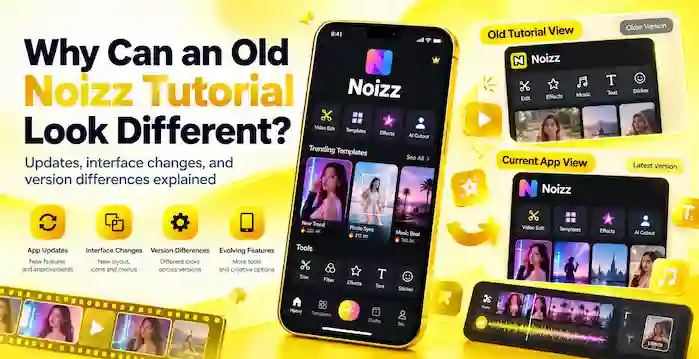
Have you ever followed an old Noizz tutorial and discovered that your app looks completely different? Perhaps the buttons appear in another place, a filter has disappeared, or the creator shows a screen you cannot find on your phone. This can feel confusing, especially when you follow every instruction carefully.
However, these differences do not necessarily mean that you installed the wrong application. Apps change over time, and older tutorials often show features, menus, and designs from previous releases. Your Android version, app version, region, and available online services can also affect what you see.
In this guide, we will explain why an old Noizz tutorial may look different, how to identify the version shown in a video, and what you can do when the instructions no longer match your screen.
Why Can an Old Noizz Tutorial Look Different?
The most common reason is that the tutorial creator used a different version of Noizz Download from the one you currently have. Developers can change an app’s layout, move buttons, introduce new tools, or remove older features through updates.
For example, an older video might show a template button at the bottom of the screen. Your version might display templates in another section or use a different icon. Although both screens may belong to the same application, the interface can look noticeably different.
Several other factors can contribute to this problem, including changes to Android, discontinued online features, regional availability, and outdated instructions.
1. Noizz Received App Updates
Developers often update applications to fix bugs, improve performance, change designs, and introduce creative features. These updates can make an older tutorial difficult to follow.
An older Noizz tutorial might demonstrate a filter, editing tool, or menu that the developer later changed. Consequently, the instructions may no longer match the current interface.
However, not every visual difference comes from an update. The tutorial might also show a different device, an earlier application configuration, or a feature that depends on an online service.
2. The Tutorial Shows an Older App Version
Every application release has its own version information. When a tutorial creator records a video, they usually demonstrate the version installed on their device at that time.
Suppose a creator recorded a Noizz tutorial several years ago. The video might show older icons, a different home screen, or a particular editing workflow. If you install another release, you may encounter a different arrangement.
This explains why following an older video can become difficult even when you use the correct application.
To avoid confusion, check the tutorial’s upload date and compare its screenshots with your app before following the instructions.
3. Your Android Version May Affect the Interface
Android versions can affect how applications request permissions, access media files, and interact with system settings.
For example, an older tutorial might instruct you to grant broad storage access through a menu that no longer appears on your phone. Newer Android versions may handle photo and video permissions differently.
As a result, you might need to follow your phone’s current permission settings instead of copying every step shown in the video.
Keep in mind that Android differences do not automatically explain changes inside Noizz itself. They mainly affect system-level interactions and compatibility.
Which Noizz Features May Look Different?
Some interface changes are more noticeable than others. Understanding the affected feature can help you identify the reason for the difference.
Home Screen and Navigation
The home screen is often the first place where users notice differences. A tutorial may show a large editing button, a row of templates, or a menu at the bottom of the screen.
Your version might arrange these elements differently. Instead of searching for an identical button, look for the same function in another section.
For example, a tutorial’s template menu might correspond to a similarly named creative section in your version. The exact label and location will depend on the release.
Filters, Effects, and Templates
Noizz became known for its creative video effects, music, stickers, and ready-made templates. However, the available collection may change over time.
A tutorial might demonstrate an effect that is no longer available in your installation. Some creative assets may also depend on an internet connection or a service that the app no longer supports.
Therefore, a missing filter does not automatically mean that your installation is fake or damaged.
Music and Editing Tools
Music libraries and editing options can change because of application updates, licensing restrictions, or changes to online services.
An older tutorial may show a music selection screen that no longer appears. Similarly, an editing tool might have moved or become unavailable.
If the tutorial relies on an online feature, the original steps may stop working even when you use the same app version.
How to Identify the Noizz Version in an Old Tutorial
Before changing anything on your phone, try to establish which release the tutorial demonstrates.
Check the Video’s Upload Date
Start by looking at the tutorial’s publication date. An older video is more likely to show an earlier interface, although the upload date alone cannot identify the exact app version.
Next, check the description and pinned comments. The creator may mention the version number, device model, or changes that occurred after recording.
If the video includes an installation demonstration, look for the application information screen or version details.
Check Your Installed App Version
Open your phone’s app settings and find Noizz in the installed applications list. Depending on your Android device, the app information page may display the installed version.
You can then compare that information with the tutorial’s description or a reliable archived version history.
For the original Noizz video editor, archived listings document version 5.13.3 as a release dated April 17, 2024. However, you should verify the specific application identity before using that information to evaluate another app with a similar name.
Compare the Main Interface Elements
Look at the home screen, editing menu, template section, and available tools. Compare these elements with the tutorial instead of relying on one button or icon.
If several elements differ, you may be looking at another version or a different application. If only one feature is missing, an unavailable template or online service may explain the problem.
What Should You Do When the Tutorial Does Not Match Your App?
You do not necessarily need to install an older version. Try these steps first.
Step 1: Search for a Newer Tutorial
Look for a tutorial that demonstrates the version you currently use or was published more recently. Check the creator’s instructions and comments to see whether other viewers report similar problems.
A newer tutorial may explain the updated interface and save you time.
Step 2: Look for the Same Function
If a button has moved, explore the app’s menus and settings. Look for labels that describe the same task, such as effects, templates, editing, or music.
Avoid changing unrelated settings simply because they appear in the tutorial.
Step 3: Check Your Internet Connection
Some creative features may require an active connection to load templates, effects, or other online resources. If a feature fails to load, check your connection and try again.
However, a working internet connection cannot restore a service that the developer has discontinued.
Step 4: Avoid Unverified Older APK
Some websites offer older APK files as a way to recreate the interface shown in a tutorial. Although an older release may look familiar, downloading it from an unknown source can expose your device to modified or malicious software.
Only consider an older release when you can verify its origin, signing information, and compatibility. Never assume that a familiar app name or version number proves that a file is authentic.
Can You Make Noizz Look Like the Older Version?
That depends on which differences you want to reproduce.
You may be able to find a similar effect, adjust an available setting, or use another editing tool to create a comparable result. However, you cannot necessarily restore every old button, template, or online feature.
Installing an older version also introduces compatibility and security considerations. An outdated application may not work correctly on your phone, and its online features may no longer function.
Therefore, focus on reproducing the desired editing result rather than making every screen look identical to the tutorial.
Frequently Asked Questions
Why does my Noizz app look different from YouTube tutorials?
Your installed version may differ from the version shown in the video. App updates, Android changes, device settings, and unavailable online features can all contribute to visual differences.
Does a different Noizz interface mean my app is fake?
Not necessarily. A different interface may reflect an older or newer release. Check the application identity, publisher, package information, and source before deciding whether the installation is authentic.
Why can I not find a filter shown in an old Noizz tutorial?
The filter may have been removed, renamed, moved, or made unavailable through an online service. Check the available effects and templates, and look for a newer tutorial demonstrating a similar result.
Should I download an older Noizz APK to follow a tutorial?
Not as your first option. Look for updated instructions before considering an older release. If you investigate an older APK, verify its authenticity and security because unofficial files may contain unwanted modifications.
Final Thoughts
An old Noizz tutorial can look different because applications change, Android handles certain functions differently, and online features may no longer work. These differences do not automatically indicate a problem with your phone or installation.
Start by checking your app version, reviewing the tutorial’s publication date, and looking for the same function in your current interface. If a feature has disappeared, search for updated instructions or a practical alternative.
Most importantly, avoid downloading an unverified APK just to recreate an older screen. Understanding why the interface changed will help you troubleshoot the problem more safely and find the editing tools you actually need.